



With every release of a new iPhone, tech enthusiasts and casual users alike are keen on the latest enhancements to the device’s camera system. The iPhone’s camera application is a staple in many daily routines, making it a focal point of Apple’s constant updates.
The newest iPhone 17 series and accompanying iOS 26 boasts exciting additions like dual capture capabilities, a Center Stage feature for video chats, and toggles for the Lock Screen camera shortcuts.
However, the iPhone camera is equipped with numerous functionalities that often fly under the radar. While prominent features get the spotlight, there are still hidden gems worth discovering. Dive into five lesser-known camera features that can elevate your photography game.
Capture Videos Seamlessly from Photo Mode
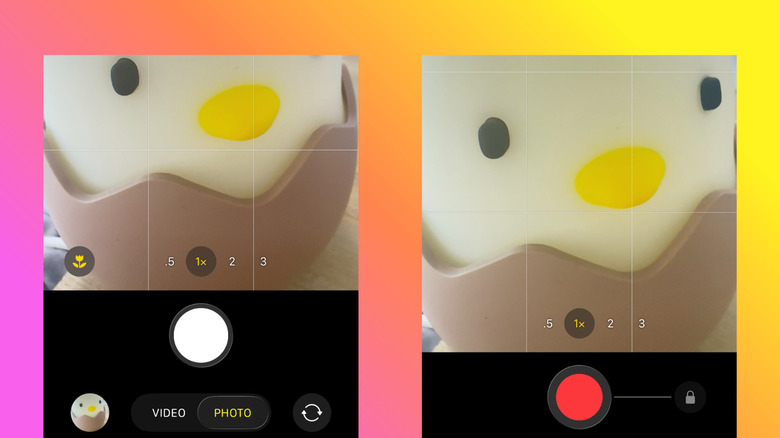
Imagine finding yourself in a moment that calls for video capturing, but your camera is set to photo mode. Instead of fumbling with settings, simply long-press the shutter button. This action begins recording instantly; once you’re done, release the button. Need a longer recording? Just swipe right to lock the button in place and switch between taking pictures and recording videos easily.
This innovative feature makes capturing spontaneous moments easier and offers adjustable video aspect ratios. Unlike standard Video mode, where aspect ratios are fixed, Photo mode allows flexibility. Access the aspect ratio settings by swiping up on your screen before you begin filming.
However, bear in mind that recording in 16:9 only gives you 1080p resolution while other ratios offer slightly better quality at 1440p.
Customize the Camera Control for Third-Party Apps
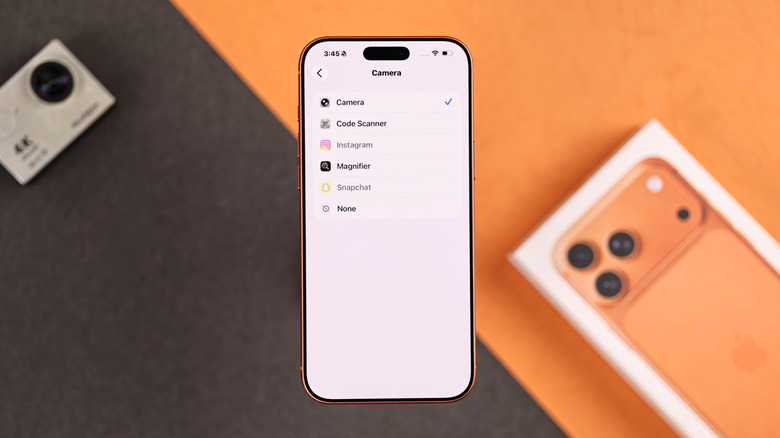
Apple’s Camera Control button was made to provide quick access to the camera. A single press launches the camera; press and hold to record. But if you have a favorite third-party camera app, you can customize this button to open it instead. To personalize your Camera Control, follow these easy steps:
Navigate to System Settings and find Camera Control.
Look for Launch Camera under the Camera section.
Select your preferred third-party camera app.
Make sure any third-party apps are authorized to access your camera.
Take Hands-Free Photos with Voice Commands
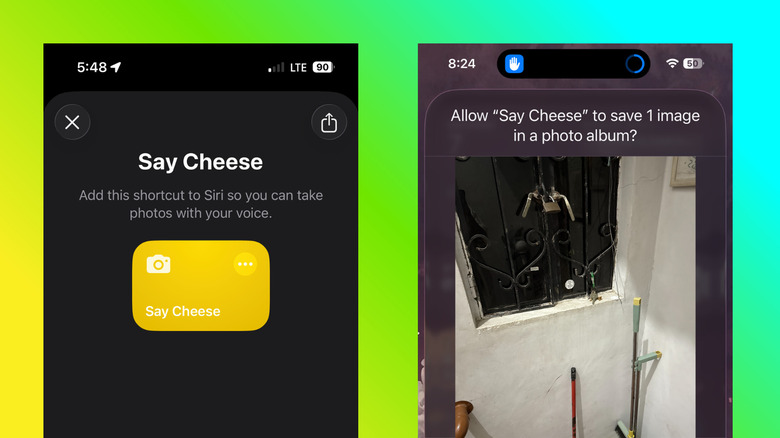
If you’ve ever wished to take a picture without physically tapping the button, you can do so with a simple Siri command. Just say, “Siri, say cheese,” after adding the appropriate Shortcut in the Shortcuts app. While this feature may require a bit of initial setup, it proves immensely useful for hands-free photography.
To set this up, navigate to your Shortcuts app, find the Say Cheese Shortcut, and enable it. Ensure Siri is activated. The command will capture a photo without opening the Camera app. Customize the feature further in the Shortcuts app for a preview or timer.
Utilize Your Camera for More Than Photos
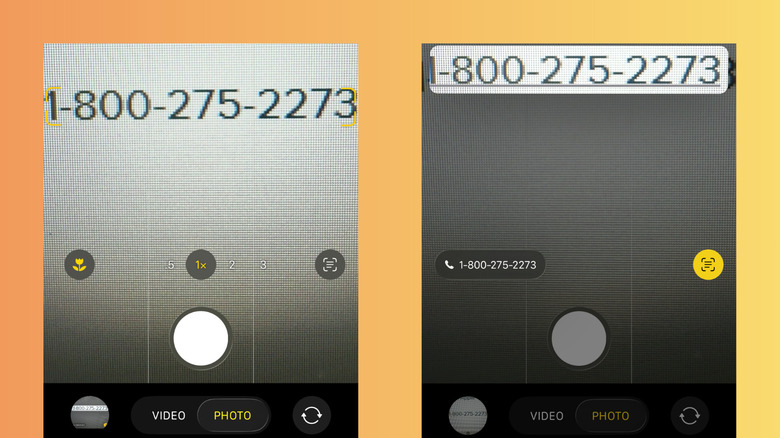
Your iPhone camera can scan text and interact with QR codes. To scan text, open your camera app and frame the text. Wait for the yellow brackets to highlight it. Once recognized, options will appear to call a number, visit a link, or copy the scanned text.
This feature is limited to certain languages. Explore the possibilities and make the most of these versatile functions.
Experience Continuous Zoom Using the Camera Control Button
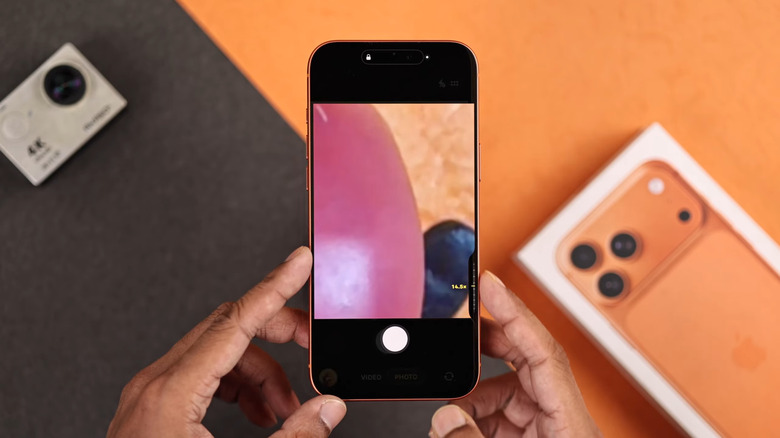
For iPhone 16 series users and beyond, the Camera Control button allows continuous zooming. To activate this option, go to Camera Control settings, toggle on Camera Adjustments, and select Zoom. You can then use the Camera Control button to slide through different zoom levels, reaching up to the iPhone’s maximum capability.
With these hidden features, you can truly enhance your iPhone camera experience. Take time to explore how they can enhance your photography and convenience.
Key Takeaways
1. **Capture Videos Instantly**: Long-press the shutter button in Photo mode to start recording without switching modes.
2. **Customize for Convenience**: Set your Camera Control button to open a third-party app.
3. **Hands-Free Photography**: Use Siri to snap pictures without touching the device.
4. **More Than Just Photos**: Use your camera to scan text and access links directly.
5. **Enjoy Continuous Zooming**: Enable continuous zoom through the Camera Control button for more fluid control.