

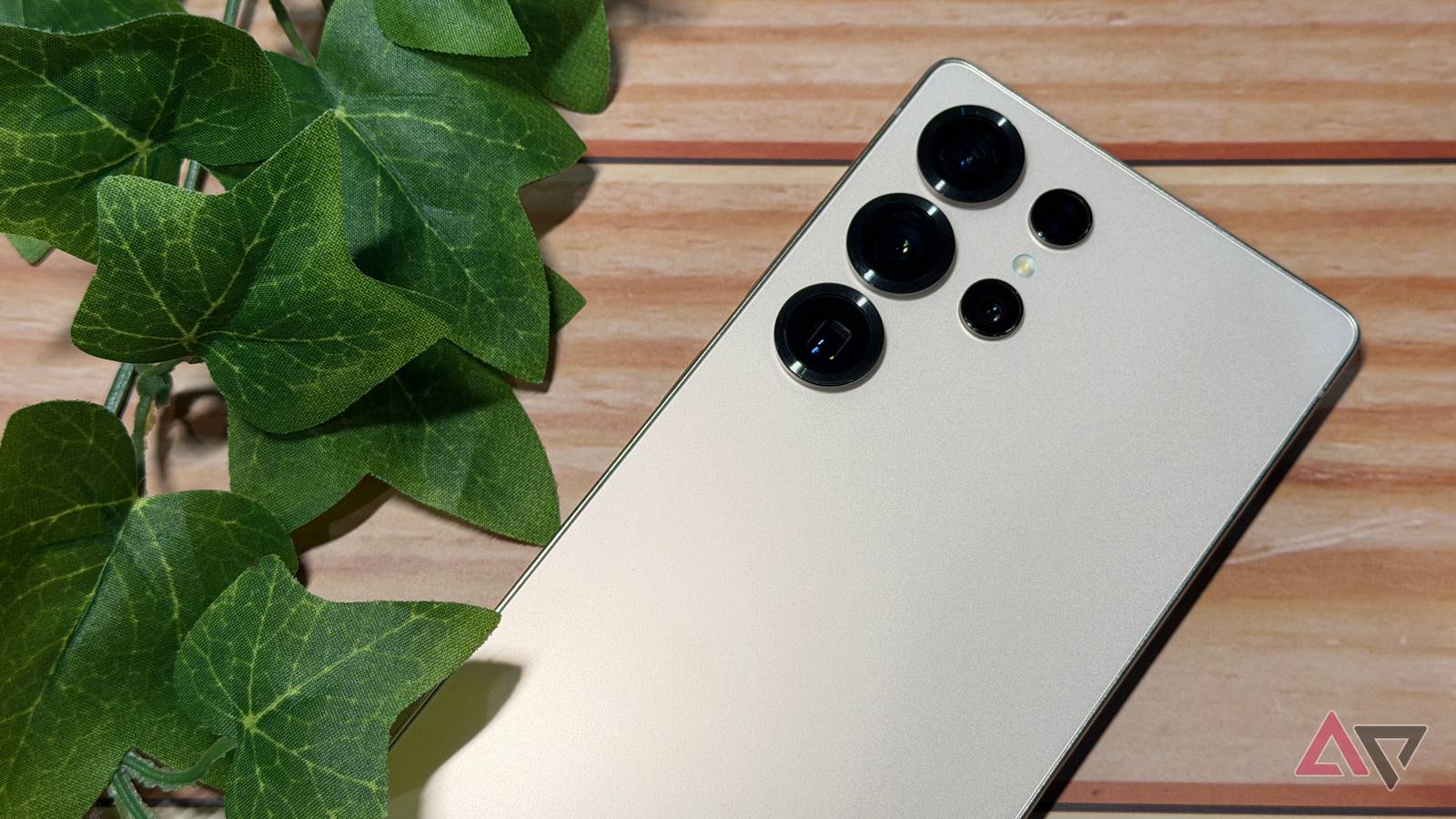
Many users find Samsung’s One UI packed with features and settings that can seem excessive. During my time with a Samsung Galaxy, I discovered that the initial setup was the root of my frustrations, rather than the software itself.
Many of Samsung’s remarkable productivity tools and visual enhancements are tucked away behind menus that users rarely explore. After several weeks of exploring these features, I identified adjustments that transformed my device into a streamlined productivity unit.
Streamlining the Quick Settings
Samsung has separated the quick settings from the notification bar, making tasks like toggling Wi-Fi a bit cumbersome. Fortunately, users can revert to a more user-friendly layout. I navigated to the quick settings, tapped on Panel settings, and selected Together to include brightness control, allowing for seamless adjustments.
This change allows for managing tasks, like toggling a VPN or switching to Bluetooth earbuds, from one easy-to-reach spot on the screen.
Refining Live Notifications
Live updates on the Now Bar can become overwhelming. To address this, I went to Settings > Lock screen and AOD > Now bar and reviewed the Live notifications settings. Disabling unnecessary notifications helped focus alerts on what truly matters.
Customizing the Side Button
Holding the side button used to activate a virtual assistant instead of offering a way to power off my device. This misbehavior often led to frustration when I intended to turn off my phone.
By visiting Settings > Advanced features > Side button, I changed the Press and hold function to open the Power off menu. Now, I receive the expected shutdown options.
Enhancing Screen Recording
Cluttered status and navigation bars can ruin screenshots or recordings. To eliminate distractions, I accessed Settings > Advanced features > Screenshots and screen recordings and chose to hide these bars, resulting in more polished visuals.
Utilizing Dual Messenger
For those with dual-SIM setups, the “one app, one account” rule can be annoying. I used the Dual Messenger feature in Settings > Advanced features > Dual Messenger, creating a second instance of apps like WhatsApp for easy management of personal and professional communications.
Scheduled Maintenance
Regularly rebooting the Galaxy keeps it running smoothly without third-party apps. I set this up through Settings > Device care > Auto optimization, allowing my phone to reboot under specific conditions, ensuring optimal performance without interrupting my daily routine.
Final Thoughts
Using these settings has transformed my Samsung device into an efficient work companion. The hidden features within the Samsung ecosystem enhance usability and customization while minimizing clutter. If your phone feels chaotic, consider exploring your settings to improve performance.
Key Takeaways
- Explore your Samsung phone’s settings to unlock features that enhance usability.
- Simplify quick settings for easier access to essential functions.
- Tailor notification settings to reduce distractions.
- Customize the side button for a more intuitive experience.
- Use Dual Messenger to manage multiple accounts seamlessly.
- Implement a scheduled reboot to maintain performance.
- Personalize your device to better suit your workflow.