

Upgrading Your Drive: Transformative Tips for Android Auto Users
Android Auto remains a leading option in-car infotainment systems, offering several opportunities for enhancement. Here are some favorite tweaks to elevate the Android Auto experience.
Activate Developer Mode
Unlocking Developer Mode is key for making significant adjustments. To access this, go to the Android Auto app settings, scroll to “Version and permission info,” and tap it ten times. This opens features that improve your interface, like adjusting resolution settings and disabling data-consuming features.
Taskbar Widgets: A Game Changer
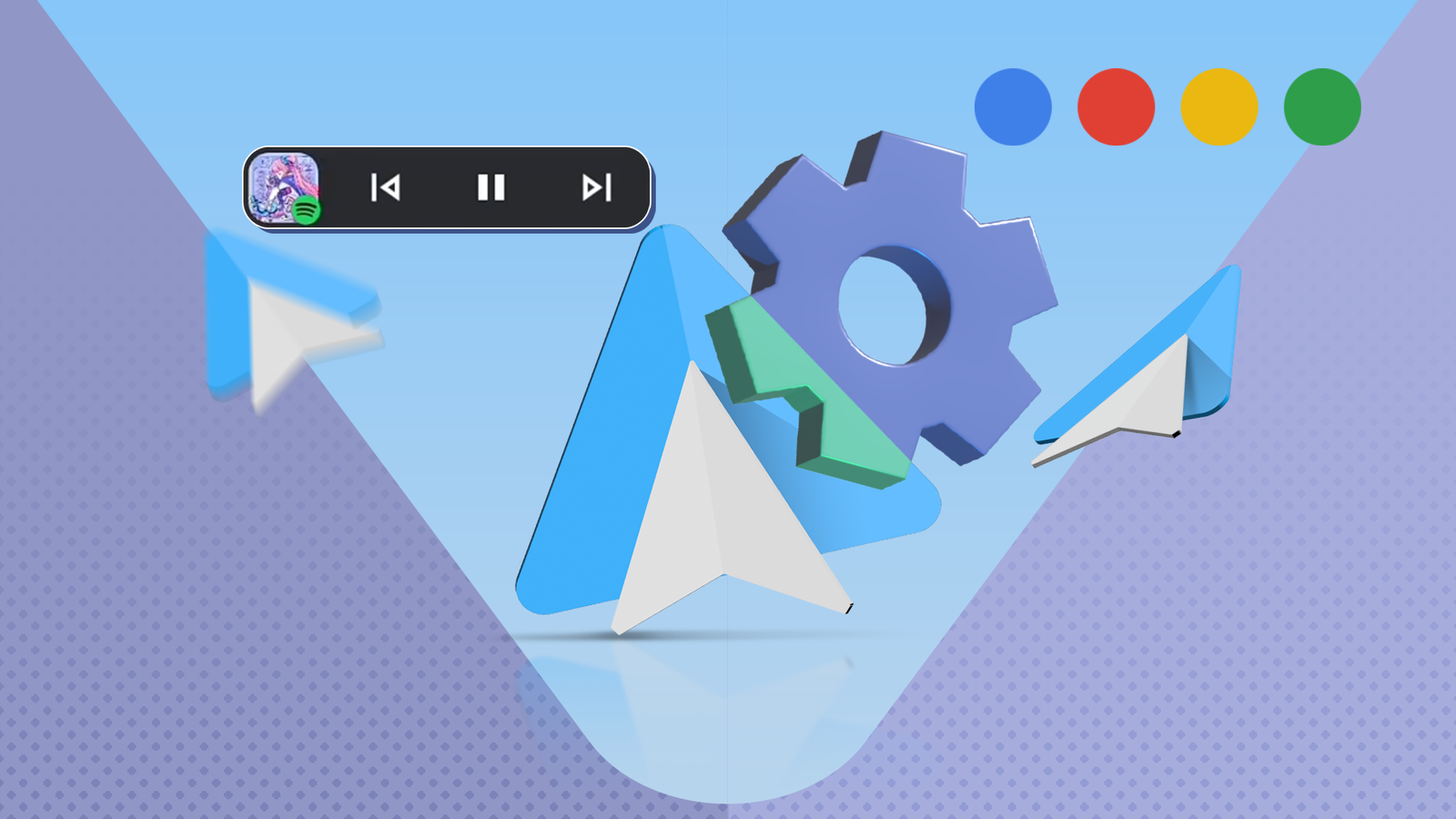
Introducing taskbar widgets enhances your setup, appearing at the bottom of your screen for media notifications and essential controls. To enable this feature, navigate to settings, select “Connected devices,” and toggle on “Taskbar widgets.”
Optimize Your Apps
Install frequently used Android Auto-compatible applications from the Google Play Store, like podcast platforms or music streaming services. Note that gaming options are available only when parked.
Transitioning to Wireless Functionality
Consider switching to wireless Android Auto for a hassle-free experience. While there may be concerns about reliability, positive experiences are common, especially with a reliable car charger.
Establish Your Routines
Automate daily drives using Google Routines to streamline tasks like queuing podcasts or adjusting music. This can significantly enhance your driving experience.
Cleaner Interface: Organizing Your Launcher
To reduce distractions, customize your launcher in Android Auto settings. Deselect unnecessary apps to create a more streamlined interface, minimizing time spent scrolling.
Download for Offline Access
Ensure playlists and maps are downloaded ahead of time to avoid connectivity issues on the road. Most music applications allow for offline playlist downloads, and pre-downloading maps ensures you stay on track during long trips.
Key Takeaways
- Unlock Developer Mode: Gain more control over settings for a tailored experience.
- Use Taskbar Widgets: Enjoy easy media controls while maximizing screen space for navigation.
- Prioritize App Downloads: Focus on essential applications for an enriched driving experience.
- Wireless Capability: Consider the convenience of wireless connectivity.
- Automate with Routines: Streamline frequent activities for enhanced convenience.
- Organize Your Launcher: Declutter your display by hiding non-essential apps.
- Download Content Ahead: Prepare offline playlists and maps to avoid losing connectivity.
By leveraging these upgrades, drivers can enhance their time behind the wheel.