

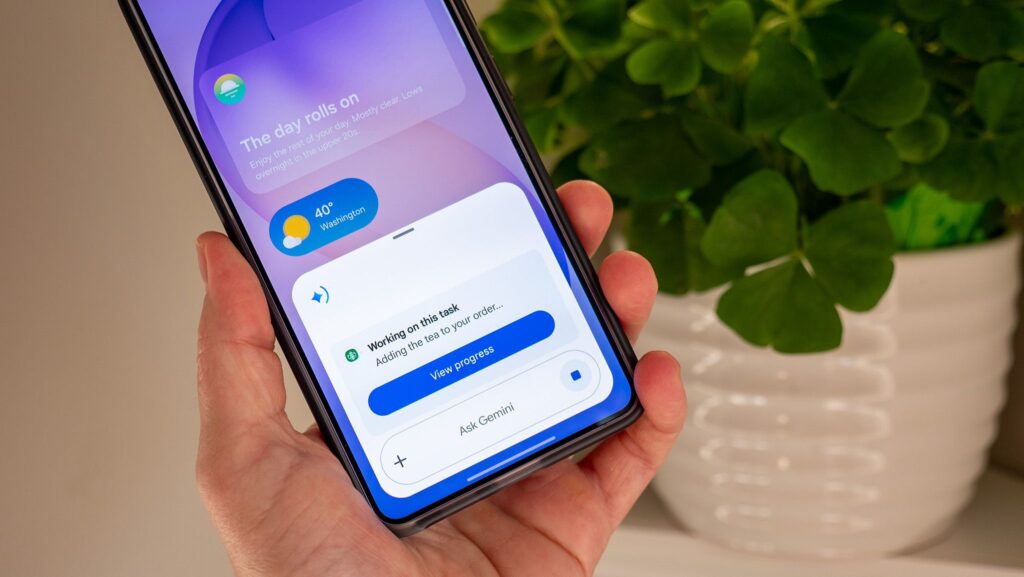
At the recent launch of the Samsung Galaxy S26 Ultra, a fascinating new feature was announced. Dubbed Gemini, this technology can handle tasks like ordering rides and food from popular chains. I decided to test its capabilities with my new Galaxy S26 Ultra by asking Gemini to “pick up a tall Medicine Ball tea from the nearest Starbucks.”
What happened next was remarkable. Despite the casual phrasing, Gemini opened the Starbucks app, navigated to the correct location, chose the drink, customized it, and added it to my cart. All I had to do was hit “confirm,” and my favorite drink was ready for pick-up!
Gemini is currently available on the Galaxy S26 lineup in the U.S. and South Korea.
What Does This Automation Mean for Users?
How to Get Started with Gemini
If your Galaxy S26 Ultra is updated, you’re ready to explore Gemini’s automation. Enable the feature through a Google account and check for compatible apps like Lyft, Uber, Grubhub, and Starbucks.
Setting Up Screen Automation
To enable screen automation:
- Open the Gemini app.
- Tap your profile picture.
- Scroll down to Settings.
- Select Screen Automation.
- Define your permission level.
- Browse the list of supported apps.
This ensures Gemini can act according to your commands while respecting your preferences.
How to Command Gemini to Order
To place an order:
- Activate Gemini by saying “hey Google” or pressing the power button.
- Ask it to order food or drink.
- If permission is required, approve it.
- While Gemini works, continue using your phone. Check progress via notifications.
- Intervene to stop or modify the task if needed.
- Review your order and hit “confirm.”
Gemini can ask clarifying questions to ensure accuracy during the ordering process.
What to Keep in Mind
Currently, the selection of compatible apps is limited, though services like GrubHub allow for more complex orders. Gemini can’t handle tasks requiring multiple stops in a single request, but updates are expected.
Set default preferences for streamlined future orders, enhancing user experience.
Key Takeaways
- Gemini Automation: A new feature in the Galaxy S26 Ultra for easy ordering.
- Setup Simple: Activating Gemini is straightforward.
- Command Flexibility: Place individualized or group orders, with clarifying questions as needed.
- Limitations: Some tasks are currently too complex for Gemini, with anticipated updates.
- User Preferences: Store personal preferences for tailored experiences.
With tools like Gemini, the future of personal technology is increasingly convenient.