

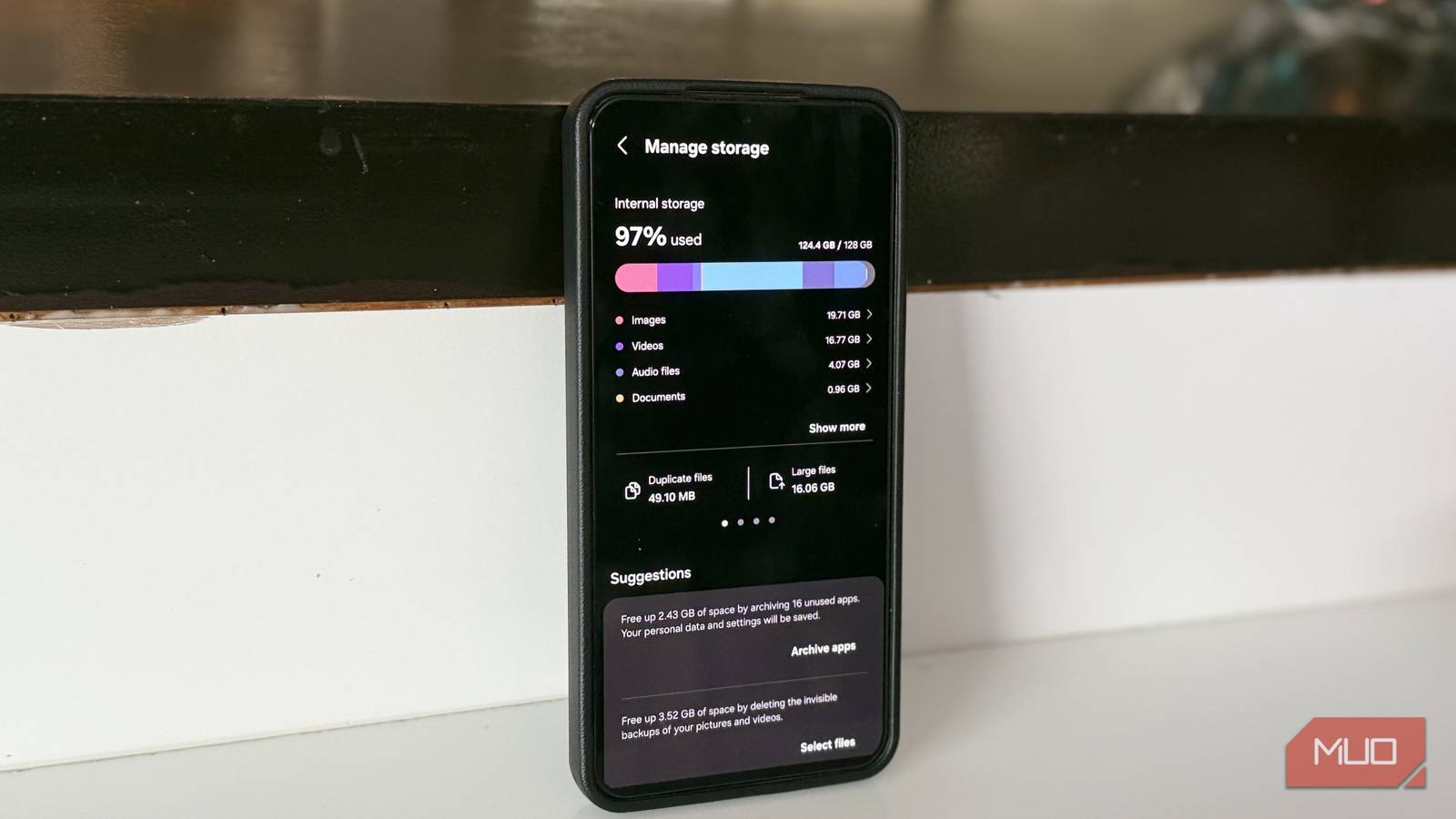
Many Samsung smartphone users may be oblivious to the storage hog lurking within their devices. A substantial amount of space can be occupied by a category labeled as “Other files.” This section often slips under the radar, encompassing anything that doesn’t neatly fit into categories like images, apps, or documents.
During a recent digital decluttering expedition, nearly 15GB of these baffling “Other files” were discovered. Given a smartphone capacity of 128GB, this unexpected storage consumption is significant. Reports suggest some devices can hoard over 100GB in this category, making it a real concern for those who value their storage space.
Understanding “Other Files”
What exactly constitutes these “Other files”? By navigating to Settings > Device care > Storage, then tapping Show more and selecting Other files, users can view three distinct classifications: Invisible backups, Pending files, and Uncategorized.
Invisible Backups refer to old versions of photos or videos created when editing within the Samsung Gallery app. While these backups can be helpful for reversing edits, they are often unnecessary and can be safely deleted.
Pending Files include those that haven’t completed their uploading, downloading, or removing processes. Files that were paused in mid-download can linger within storage.
Uncategorized files represent a vague assortment ranging from app caches to system files and temporary data that typically go unnoticed in the regular storage overview.
Tackling the Bloat of Other Files
Shedding these Other files poses challenges, as Samsung does not provide an easy “Delete All” option.
The first step is straightforward: in the storage menu, you can erase Invisible backups. By tapping All, followed by Delete > Delete files, some space can be reclaimed.
For Pending files and Uncategorized items, the process is less user-friendly. The only available action is to check Details, which reveals file locations without offering a direct deletion option. To eliminate them, delve into the File Manager and manually dispose of any unwanted files. Alternatively, apps like SD Maid SE can assist in the cleanup.
In addition to these strategies, it’s wise to tackle app caches. Streaming services, social media platforms, and web browsers typically contribute significantly to the Other files category. Samsung devices allow users to clear the cache of all apps at once through Settings > Device care > Storage > App cache—though this feature might not be available on all models. If absent, clearing each app individually from the Apps menu is necessary.
Accepting Some Files Will Stick Around
Even after thorough cleanup efforts, reaching a zero balance in the Other files category may still elude you. Many files, particularly system-related and temporary ones, will remain essential to your phone’s operation.
While a factory reset could theoretically eliminate the clutter, such drastic measures are often unnecessary as the problem will reoccur over time. The best approach? Clear out what you can and accept that a small portion of Other files is integral to your device’s functionality.
Key Takeaways
- Regularly review your device’s storage settings to keep an eye on hidden files.
- Understand that “Other files” often encompass backups and incomplete downloads.
- Use Samsung’s built-in tools to clear unnecessary files but accept that some system files are necessary.
- Consider third-party apps for deeper cleaning if needed, but use them wisely.
- Regular maintenance can prevent storage issues from piling up, keeping your usage smoother.
This journey into digital decluttering illuminates how we often overlook hidden storage consumption on our devices, encouraging a proactive approach to managing what we store.