

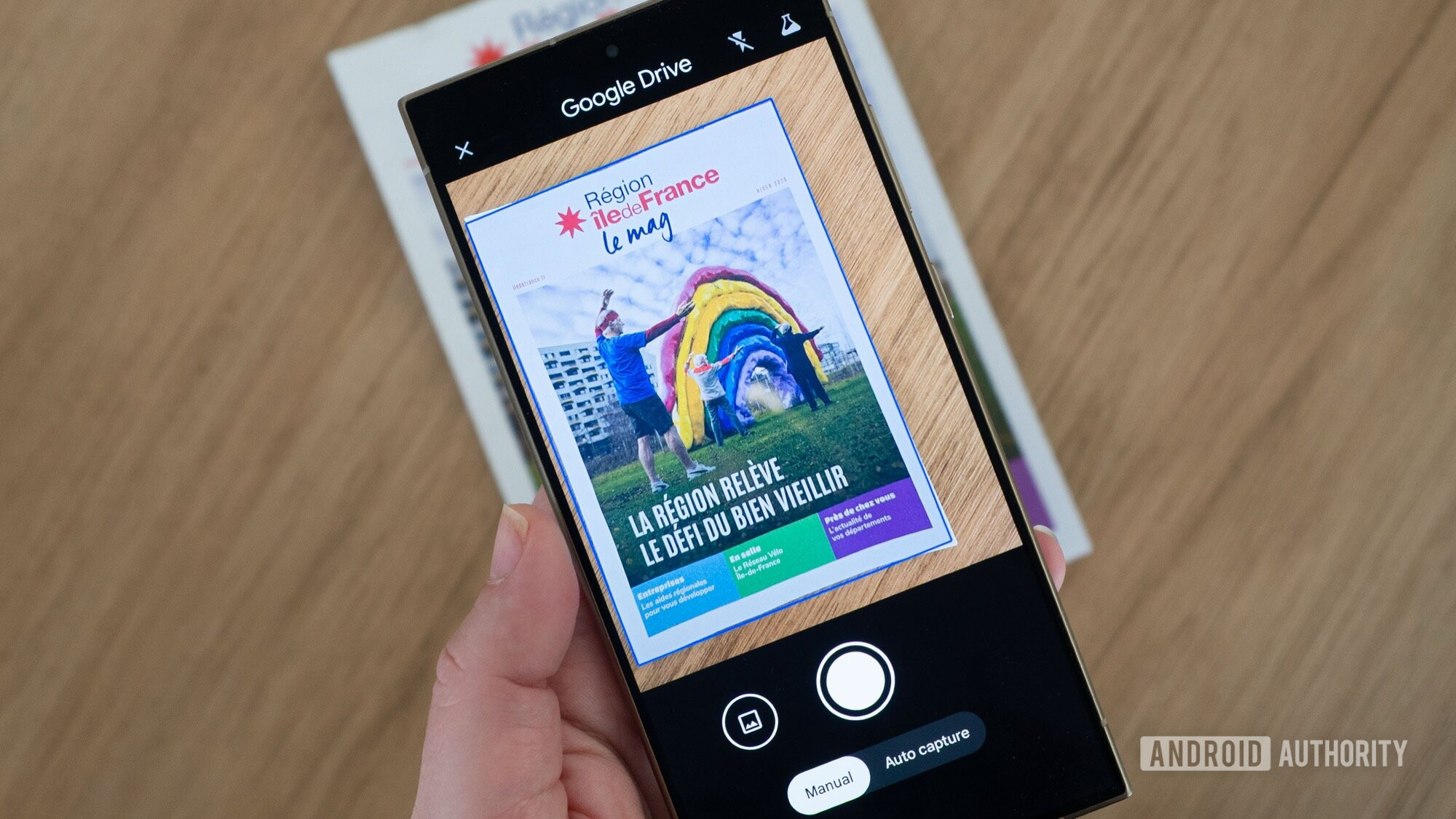
If you’ve held on to an older Android device, you might be pleased to know that it already houses a robust document scanning feature, much like the latest models. You can perform effective document scans using just the Google Drive app, which comes pre-installed on virtually all Android devices.
Utilizing Google Drive’s Built-in Scanner
To kick off scanning documents with Google Drive, simply open the app on your Android phone. Tap the large Plus (+) button located at the bottom right corner and select Scan. This will direct you to a scanner interface where you can choose between Manual and Auto Capture modes. Manual mode allows you to align the document manually, while Auto Capture automatically snaps a picture once it recognizes a clear scan.
Google Drive’s smart technology significantly enhances your scanning experience. The app accurately identifies document edges, efficiently auto-cropping the image to exclude any surrounding distractions, saving users time on alignment.
Key Features of Google Drive’s Scanner
Google Drive’s scanner comes loaded with functionalities that enhance scan quality. It effectively eliminates shadows and adjusts white balance for optimal clarity. The text contrast is enhanced, ensuring legibility, making it a valuable tool for anyone managing paperwork.
Users can tweak manual settings, including cropping and color filters, or remove unwanted shadows. However, automatic adjustments are typically sufficient.
Once you complete your scans, you can easily add multiple pages into a single document, which is handy for compiling documents or forms. Google Drive is also testing a feature that allows multiple pages to be captured in rapid succession.
Exporting Your Scanned Documents
After finishing your scans, tap Next to name your document and choose between PDF and JPEG formats. You can upload your document directly to Google Drive for easy access.
A Time-Saving Tool for Everyone
Scanning documents traditionally involved considerable time aligning, capturing, and processing images. However, with Google Drive, the process has become quick and user-friendly.
This tool is particularly beneficial for families or anyone managing numerous documents remotely, making it easy to snap, save, and share documents in moments.
In essence, advanced features offered by newer phones are exciting but not necessary for effective scanning. Older Android devices with Google Drive already provide the tools needed for efficient document management.
Key Takeaways
- User-Friendly Interface: The scanning feature is easily accessible for all users.
- Automatic Enhancements: Google Drive automatically enhances scans, saving time and effort.
- Supports Multiple Formats: Export scanned documents as either PDFs or JPEGs.
- Remote Collaboration: Easily share documents with others, ideal for teamwork and family communication.
- No Need for Latest Models: Older Android devices can perform similar tasks without requiring the latest tech.