

Transforming the Google Health App: Four Personalization Tips
The latest version of the Google Health app has stirred a range of opinions, with many users expressing dissatisfaction following its redesign. In response to feedback, Google shared a detailed support document outlining ongoing improvements and its commitment to incorporating user suggestions while addressing existing issues. Community reactions reveal mixed user reviews on platforms like the App Store and Google Play Store.
Having used the revamped app since its Public Preview launch, I’ve discovered several ways to tailor the app to better suit individual needs. Here are four key customization options to enhance your experience with the Google Health app.
Adjust Your Focus Tiles
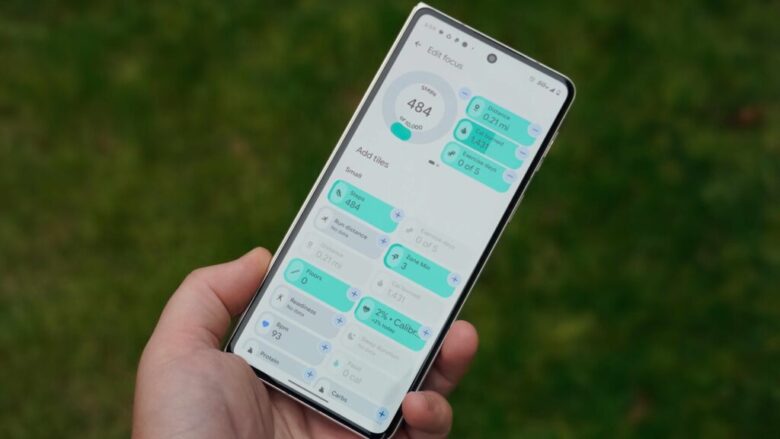
The Google Health app showcases focus tiles that serve as quick snapshots of important metrics, like steps or distance traveled. By default, only four tiles are visible on the main screen, which can feel limiting.
To customize your view, select the Edit icon shaped like a pencil. This allows you to swap, add, or remove tiles, giving you the option to display six smaller tiles or two larger ones. Note that you must remove tiles before rearranging them, as there is currently no option for direct reordering. However, creating a layout that feels more personalized can greatly enhance navigation.
Select Your Priority Metrics
Opinions on the data density of the app’s main Today page vary, but navigating to the Health page provides a deeper dive into key metrics like heart rate, weekly activities, and calorie intake. In this section, users can determine which data points matter most to them.
Edit these metrics by tapping the Customize button to prioritize what displays at the top. If tracking your calorie intake isn’t essential, replacing it with another metric can optimize your experience. Similar to focus tiles, you can only edit metrics by adding or removing them sequentially.
Connect Third-Party Applications
For those who use various health and fitness applications, syncing them with the Google Health app streamlines the experience. To initiate syncing, navigate to the Connections section in the app, where you can designate partner apps you frequently use.
Allowing access through the Health Connect API enables the app to share personal health records and fitness statistics smoothly across platforms, providing a comprehensive overview of your health without switching between applications.
Define Your Health Goals with Google Health Coach
For subscribers to Google Health Premium, there’s an added benefit in the form of the Google Health Coach, an AI-driven tool that provides personalized feedback and advice. To set your goals, switch to the Fitness tab and engage with the coach, who can guide you based on your input regarding health aspirations.
While subscribing is not mandatory, those who take advantage of this feature will likely find greater value in their health journey compared to non-subscribers.
Key Takeaways
- Personalize Your Dashboard: Alter the layout of focus tiles to make navigation faster and more intuitive.
- Weight Your Metrics: Customize key metrics to focus on what matters most to your health objectives.
- Maximize App Functionality: Sync other health apps for a seamlessly integrated fitness tracking experience.
- Leverage AI Assistance: Engage with Google Health Coach to receive tailored advice and feedback, enhancing your health journey.
By utilizing these customization options, you can transform the Google Health app into a more functional and personalized tool for managing your health. Tailoring the app not only improves usability but also keeps you engaged in your wellness goals.