

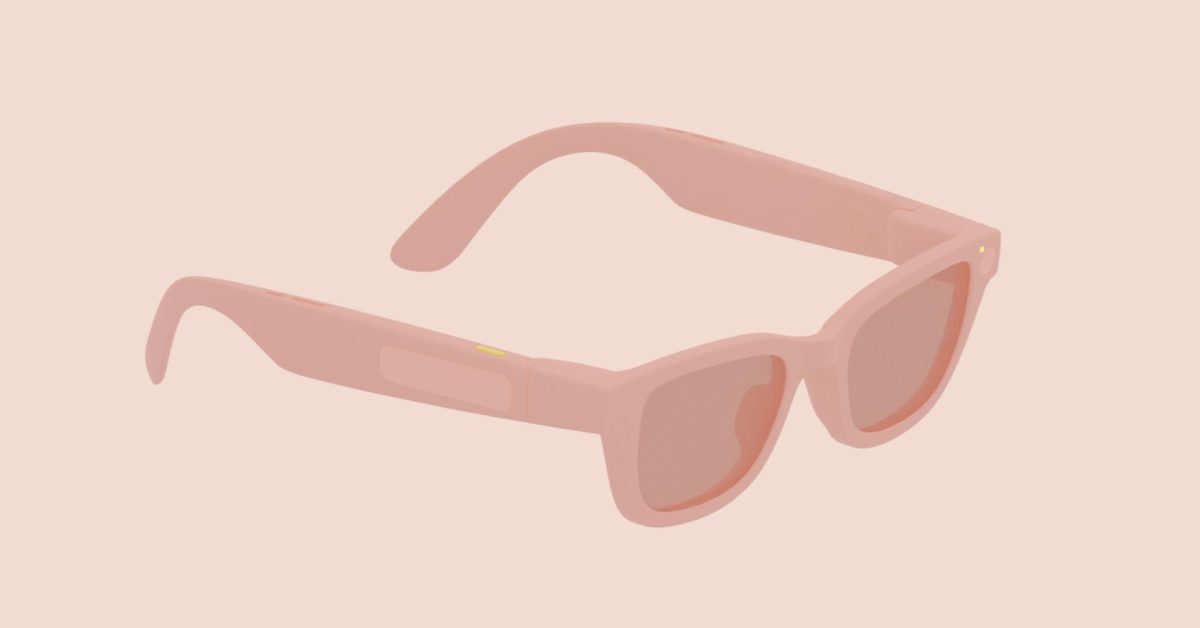

Mark your calendars for 2026, as Google prepares to unveil its Android XR glasses. Here’s a closer look at these innovative devices and what users can anticipate in terms of navigating the experience.
Since late last year, Google has released extensive design guidelines for developers, helping to create applications for these glasses. The models will exist in two distinct forms:
- AI Glasses: These integrate speakers, a microphone, and a camera.
- Display AI Glasses: This version adds a compact screen, with monocular and future dual-screen variants.
The glasses allow users to disable the display anytime, ensuring that applications remain functional in audio-only mode.
Physical Features
Each Android XR glasses model requires a physical power button, two touchpads, and a dedicated camera button. For models with screens, an additional display toggle is on the underside of the device arm.
The camera button offers simple functionality—you tap to take a picture and hold it to record video. A similar operation applies to the display button, allowing users to switch between “Wake” and “Sleep” modes.
The touchpad provides several controls including:
- Tap: Play/Pause or Confirm actions
- Hold: Launch the Gemini assistant
- Swipe:
- Audio: Navigate tracks or dismiss alerts.
- Display: Scroll and select features.
- Two-Finger Swipe: Adjust volume levels.
- Swipe Down:
- Display: Return to Home Screen or previous screen while navigating applications.
Additionally, the glasses will have two LEDs to provide visual feedback for users and those nearby.
These LEDs serve as system indicators enhancing user experience, ensuring clarity on device status.
User Interface
The Home screen on the Display AI Glasses resembles a smartphone’s lock screen. A “system bar” at the bottom shows time, weather, notifications, and more.
Essential features include:
- Instant access to glanceable information.
- Quick access to likely next actions.
- Multitasking capabilities across multiple running activities.
Notifications appear as pill-shaped chips and expand when selected, enhancing interactivity.
The design language for applications on Android XR glasses, called “Glimmer,” promotes rounded corners to reduce distraction. Additionally, app developers must consider color energy consumption—green uses less power compared to other colors.
Avoid excessive white space to minimize heat generation from the display; softer colors may improve energy efficiency.
- Usable Components:
- Buttons
- Title Chips
- Cards
- Lists
- Stacks
Key Takeaways
– Anticipate the release of Android XR glasses in 2026 with a focus on audio-visual interface.
– Expect a versatile user interface that allows seamless interaction, including switching to audio-only modes.
– Understand the importance of physical controls for ease of use.
– Note the design emphasis on rounded elements to promote visual clarity and usability.
– Be mindful of color selection in apps to enhance battery life and reduce heat.
By keeping an eye on these elements, users can prepare to fully engage with this innovative technology upon its arrival.