



As tax season approaches, you may find yourself needing to sign and send physical documents. Fortunately, if you own an iPhone, you have a powerful tool at your fingertips that can help you easily manage this process. Instead of searching for a traditional scanner, you can leverage your smartphone’s built-in capabilities to scan and create digital documents in no time.
Though your iPhone may not reach the same quality as specialized scanners, it performs admirably, turning awkwardly angled photos into legible scans. This handy function has been available on iPhones since iOS 11 was introduced in 2017, and with advancements in camera technology, scanning documents has never been more efficient.
You won’t need to download extra software; the Notes app that comes with your iPhone has the features you need. If your device is updated to the latest iOS version, you can quickly scan, save, and send documents without any fuss. If you’re still using an older version, don’t worry—this guide will help you through the scanning process.
Here’s how to get started with scanning documents using your iPhone.
How to Scan a Document with Your iPhone or iPad
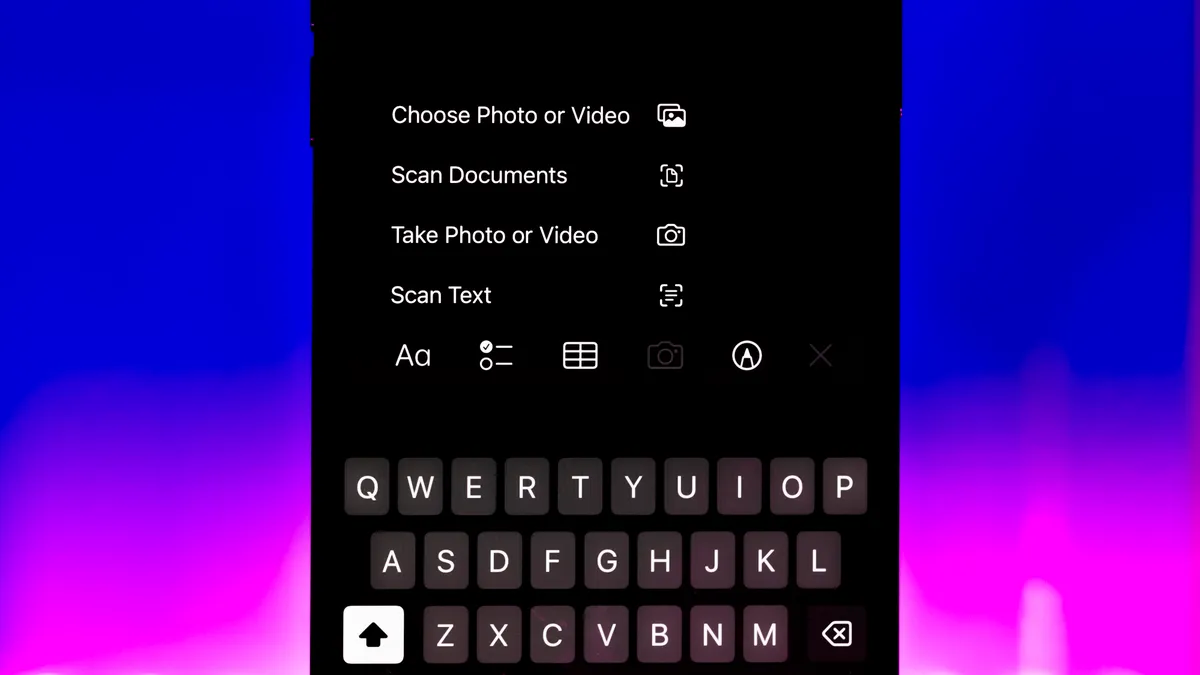
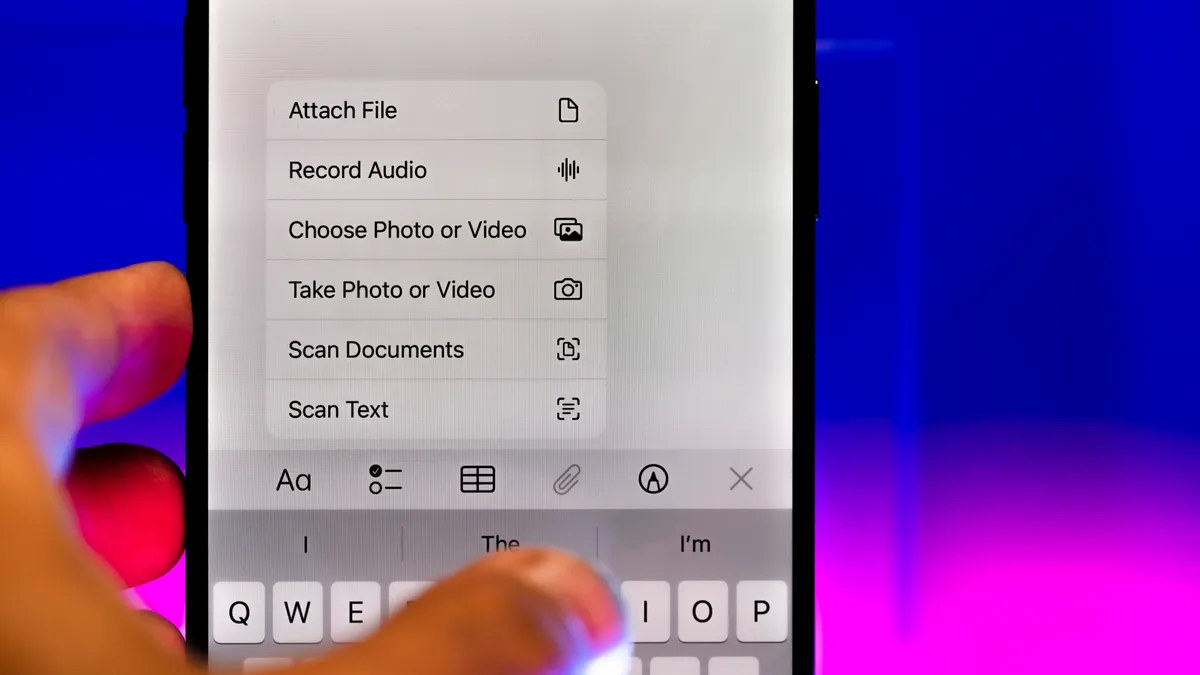
Start by placing the document on a flat surface in a well-lit area. Next, open the Notes app. You can either create a new note by tapping the pencil icon or choose an existing note. In iOS 17 and earlier versions, tap the Camera button at the bottom of the screen or above the keyboard if you’re editing a note. For users on iOS 26, this button has been updated to an Attachments icon (represented by a paperclip). Next, select “Scan Documents” from the menu.
Your camera will open with a focus on document scanning. As you hover over the document, a yellow rectangle will appear, indicating the capture area. Once your device detects the document, it will automatically scan it or you can manually tap the shutter button. You can scan multiple documents at once; simply tap the checkmark button when satisfied.
Editing and Sharing Your Scanned Document
After scanning a document, you’ll have options to edit it before finalizing. You can crop the edges, apply different filters, and more. To save the scanned document, simply tap the yellow “Save” button. If you wish to add some flair, tap the Markup icon (the circle with a pen symbol) to doodle or add your signature. You can also utilize the Add button (plus sign) for inserting text, shapes, or other elements.
If you want to send the document immediately, tap the Share icon (the box with an arrow) at the top. You can send it via various apps, save it to your Files app, or print it if you have a compatible printer.
Exporting as a PDF
If you need your scanned document in PDF format, tap the Share icon again and scroll to find the Print option. Here, you’ll need to tap the Share icon again to send your document as a PDF. It might feel a bit complicated, but this two-step process does the trick. For users who prefer third-party applications, options such as Adobe Acrobat can handle PDF conversions, although they may prompt premium subscription offers.
Troubleshooting Camera Button Issues
If you cannot locate the scanning option, check that you’re in the right note—either iCloud or On My iPhone will allow scanning. If you’re using iOS 26, remember that the camera function has shifted to the Attachments icon. If neither button appears, switch between these sections to find the right setting.
Your iPhone’s document scanner is just one of many useful features that may go unnoticed. Apple’s iPhones often come equipped with tools that can significantly enhance productivity, from scanning documents to creating GIFs and more.
Key Takeaways
- Your iPhone has a built-in document scanner that allows you to digitize physical papers.
- You can use Apple’s Notes app to scan documents without needing extra software.
- To scan, position the document on a flat surface in good light and follow the simple steps in the Notes app.
- Once scanned, you can edit, share, or save the document in various formats, including PDF.
- If you encounter issues with scanning, ensure you’re in the correct section of the Notes app and check for updates.
- Apple’s smartphones house many hidden features that can simplify daily tasks, making them ideal for managing paperwork efficiently.