



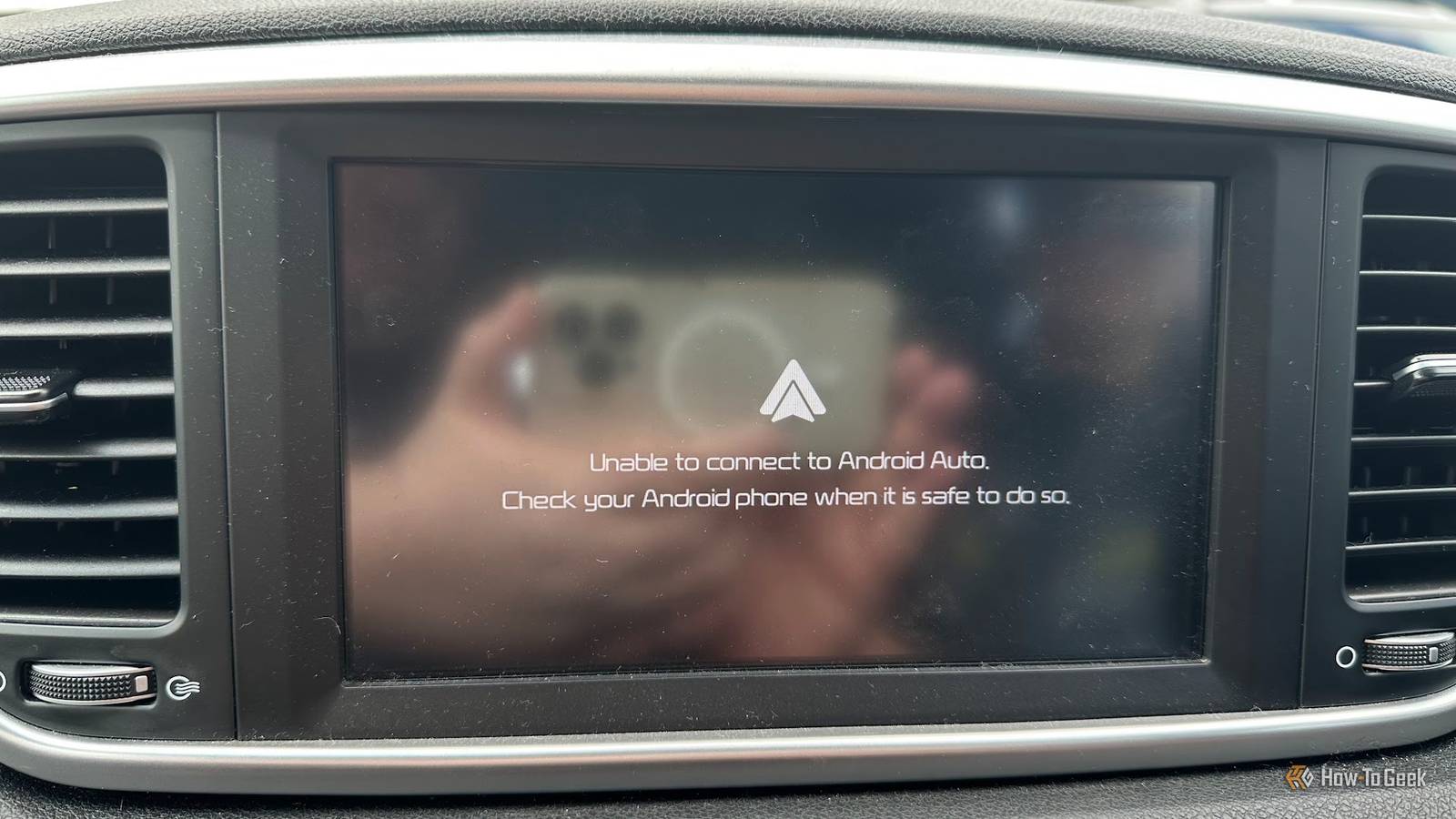
Android Auto transforms your vehicle’s display into a seamless extension of your smartphone, simplifying navigation, music playback, and messaging. However, issues such as crashes and connectivity hiccups can arise, detracting from the experience. Fortunately, many of these problems can be resolved with some adjustments.
Strengthening Your Connection: A Step-by-Step Approach
Tackling Random Disconnects
Random disconnects can be frustrating. Here are steps to enhance your wireless connection:
- Disable Adaptive Wi-Fi: Turn off adaptive Wi-Fi features in your phone’s settings to maintain a stable connection.
- Remove Battery Optimizations: Disable battery-saving features for Android Auto and related apps.
- Re-pair Your Devices: Unpair and then re-pair your phone and car with Android Auto if problems persist.
In busy areas, interference can be significant. A USB cable connection is typically more reliable.
Quality Cables Matter
The Right Connection Can Make All the Difference
Using a high-quality USB cable is essential for stability. Here are some tips:
- Choose High-Quality Cables: Opt for a USB cable designed for data transfer.
- Minimize Cable Length: A shorter cable can help reduce interference.
Clean Your Ports
Regularly clean the USB ports on both your phone and vehicle to ensure optimal performance.
Car-Specific Quirks
Some vehicles may have unique quirks. Consult the owner’s manual or online forums for brand-specific solutions.
Addressing Notification Frustrations
Resize Overwhelming Notifications
To resize notifications that take up too much screen space:
- Access Developer Options: Enable Developer Options and adjust the “Video Resolution” to improve notification display.
Voice Command Issues
For Reliable Voice Recognition
If voice commands aren’t working as expected, try these troubleshooting steps:
- Clear App Cache: Clear the cache for the Google app.
- Enable Lock Screen Access: Allow your assistant to respond while the screen is locked.
- Utilize Steering Wheel Commands: Use any dedicated voice command buttons in your vehicle.
Optimizing Settings for Older Devices
Enhancements for Older Phones
For older devices, consider the following:
- Downgrade Apps for Better Compatibility: Use an earlier version of Android Auto for smoother functionality.
- Regular Updates: Keep apps updated to access bug fixes.
Use Lightweight Navigation Apps
Consider simpler navigation apps if resource-heavy ones like Google Maps offer performance issues.
Key Takeaways
- Strengthen Your Connection: Stable wireless or wired connections are crucial.
- Invest in Quality: Use high-quality USB cables for data transfer.
- Be Proactive About Notifications: Adjust settings for effective notification management.
- Voice Interactions: Optimize settings for better voice command recognition.
- Older Device Compatibility: Explore updates and consider lighter apps for improved performance.
Embracing technology can enhance your driving experience with Android Auto, allowing you to enjoy its conveniences without minor glitches hindering your journey.