



While Android continues to impress users, there are potential tweaks to enhance its performance. Setting up a new Android device often involves making adjustments to improve battery life and streamline the interface. Several straightforward changes can be made directly in your phone’s settings, without needing any extra applications. Implementing these changes can lead to a notable improvement in battery longevity—around 10% more. Here’s how to do it.
Step 1: Disable Optimized Battery Charging
Ensure Your Phone Charges to 100%
Many modern Android devices cap charging at 80% to help prolong battery lifespan. Features like ‘Battery Protection’ and ‘Charging Optimization’ learn your charging patterns. While intended to protect your battery, they can hinder quick recharges. If you need to charge your phone on the go, locate and disable this feature to allow your phone to reach full capacity.
Step 2: Turn Off Always On Display
The Impact on Battery Life is Significant
Most new Android models feature an Always On Display (AOD) function that shows time and notifications. Keeping it activated can dramatically reduce battery life. Users may not realize that turning this off can significantly improve battery longevity. For checking the time, simply tap your screen to illuminate the lock screen. This option can be found in Settings under Display—search for “AOD” if needed.
Step 3: Fine-Tune Your Display Settings
Improve Display Density and Reduce Animation
To optimize performance, consider these display adjustments. Changing the display density can fit more content on the screen, reducing excessive scrolling. Shortening animation times enhances responsiveness, making your device feel faster. Lowering your screen resolution can help conserve battery life.
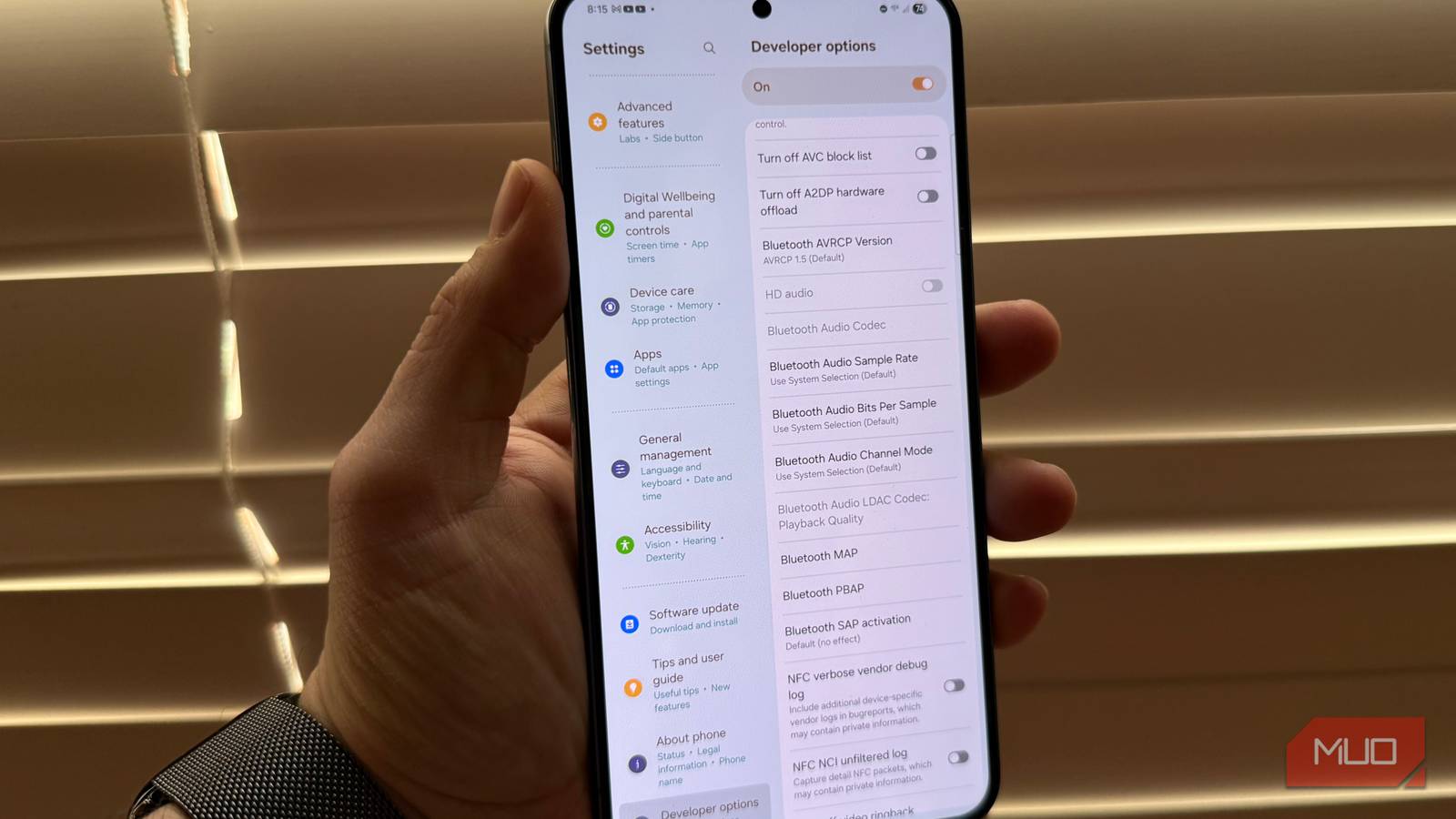
To activate developer options, navigate to Settings -> About -> tap the Build Number seven times. Here’s how:
- Change the display density in Developer Options to compact more information—experiment between 450 and 600.
- Adjust the animation speeds; set all three options to 0.5 for snappier responses.
- For optimizing performance, change your screen resolution to a lower setting, typically 1080p. Search for “resolution” in Settings.
These adjustments can lead to noticeable improvements in battery life and device performance, ensuring a smooth Android experience.
Final Tips for Extended Battery Life
Make Your Phone Work Better for You
Some might hesitate to disable battery-saving features like AOD and optimized charging. However, if you’re not planning to hold onto your phone long-term, maximizing performance may be preferable. If you prefer to keep AOD, consider customizing it for optimal energy use.
Key Takeaways
- Disabling optimized battery charging can make charging faster, providing full battery capacity when needed.
- Turning off Always On Display can significantly enhance battery performance by reducing unnecessary power drain.
- Adjusting display settings can create a more responsive experience and extend battery life.
- Consider your usage patterns; if you upgrade frequently, it may not be necessary to prioritize battery health over performance.
- Routine tweaks and adjustments can ensure your Android device meets your needs effectively.