



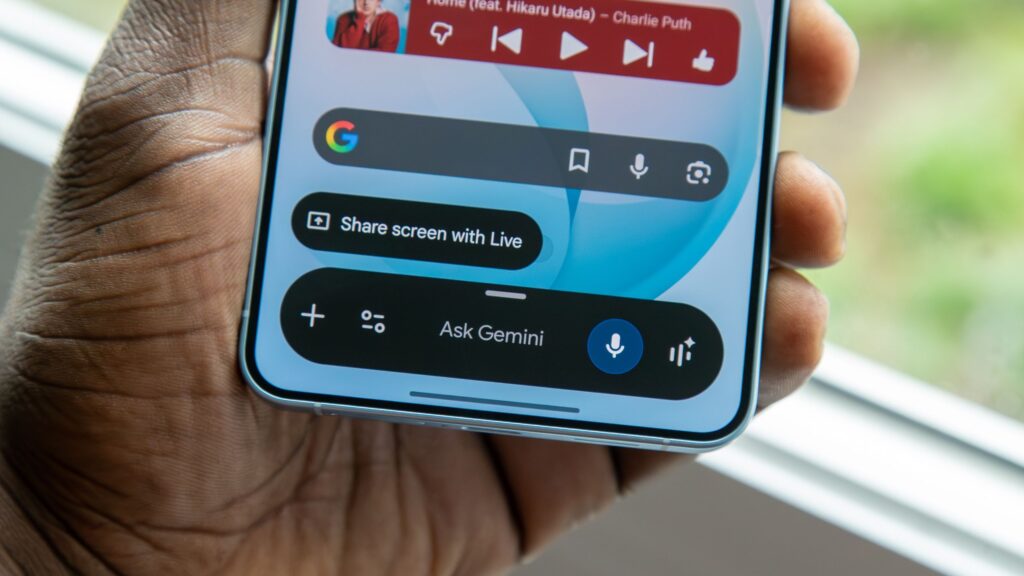
The Galaxy S26 Plus has several advancements, including enhanced AI functionalities through One UI 8.5. However, the convenient Gemini trigger known as Swipe for Assistant seems to have vanished, leaving users searching for alternatives.
A clever workaround using Samsung’s applications can regain some functionality reminiscent of the old gesture.
Exploring Samsung’s Good Lock and One Hand Operation +
Samsung’s Good Lock app allows for a customizable smartphone experience through various plugins. One standout plugin is One Hand Operation +, which lets you create customizable handles on the sides of the screen, enabling easy navigation.
Setting Up One Hand Operation + for Quick Access
To utilize this functionality, first download Good Lock from the Galaxy Store on your Samsung device, then enable the One Hand Operation + module. Follow these steps:
- Open Good Lock and activate One Hand Operation +.
- In Left handle settings, choose Diagonal up and select Assistance app. Repeat for Right handle.
- In Advanced settings, toggle on System back gesture for seamless navigation.
- Adjust handle sizes, colors, and opacity as desired. Setting opacity to 0% minimizes intrusion.
- Enable Quick action for prompt activation of Gemini when swiping.
After adapting to this setup, invoking Gemini should feel intuitive, though not as effortless as the original swipe gesture.
Preference Over Samsung’s Default Method
Many users find Samsung’s new method of triggering Gemini by long-pressing the power button less satisfactory, as it complicates established habits. To simplify the process, go to Settings > Advanced features > Side button > Long press and set it to Power off menu. This restores easier access to Gemini while powering down your device.
Key Takeaways
- The Galaxy S26 series offers impressive features, but some users miss older functionalities.
- Samsung’s Good Lock app provides extensive customization options.
- One Hand Operation + replicates gestures for quicker app access.
- Personalizing button configurations helps retain familiar functionalities.
- Adapting to new settings can ease the transition with frequently used features.